> For the complete documentation index, see [llms.txt](https://docs.simkl.org/how-to-use-simkl/llms.txt). Markdown versions of documentation pages are available by appending `.md` to page URLs; this page is available as [Markdown](https://docs.simkl.org/how-to-use-simkl/core-features/content-tracking/tracking-content/watch-history/my-watch-history.md).
# My Watch History
Your complete viewing timeline
My Watch History is the **core of SIMKL’s tracking system**. It is where every movie, TV episode, and anime episode you watch is recorded with **real dates, real times, and real progress data**.
Unlike a simple “watched list,” this page builds a **chronological timeline of your viewing life** showing not only what you watched, but **when, how much, and in what order**.
Everything you see here comes from:
* SIMKL apps
* Connected media players (Plex, Kodi, VLC, etc.)
* Browser extensions
* Manual check-ins
* Watch History Imports
This makes My Watch History your **master log**, the source used by statistics, recommendations, streaks, and time-spent tracking.
## My Watch History:
{% content-ref url="/pages/NKKI8qGtGVFufRmtgUEx" %}
[Edit Watch History Dates](/how-to-use-simkl/core-features/content-tracking/tracking-content/watch-history/edit-watch-history-dates.md)
{% endcontent-ref %}
***
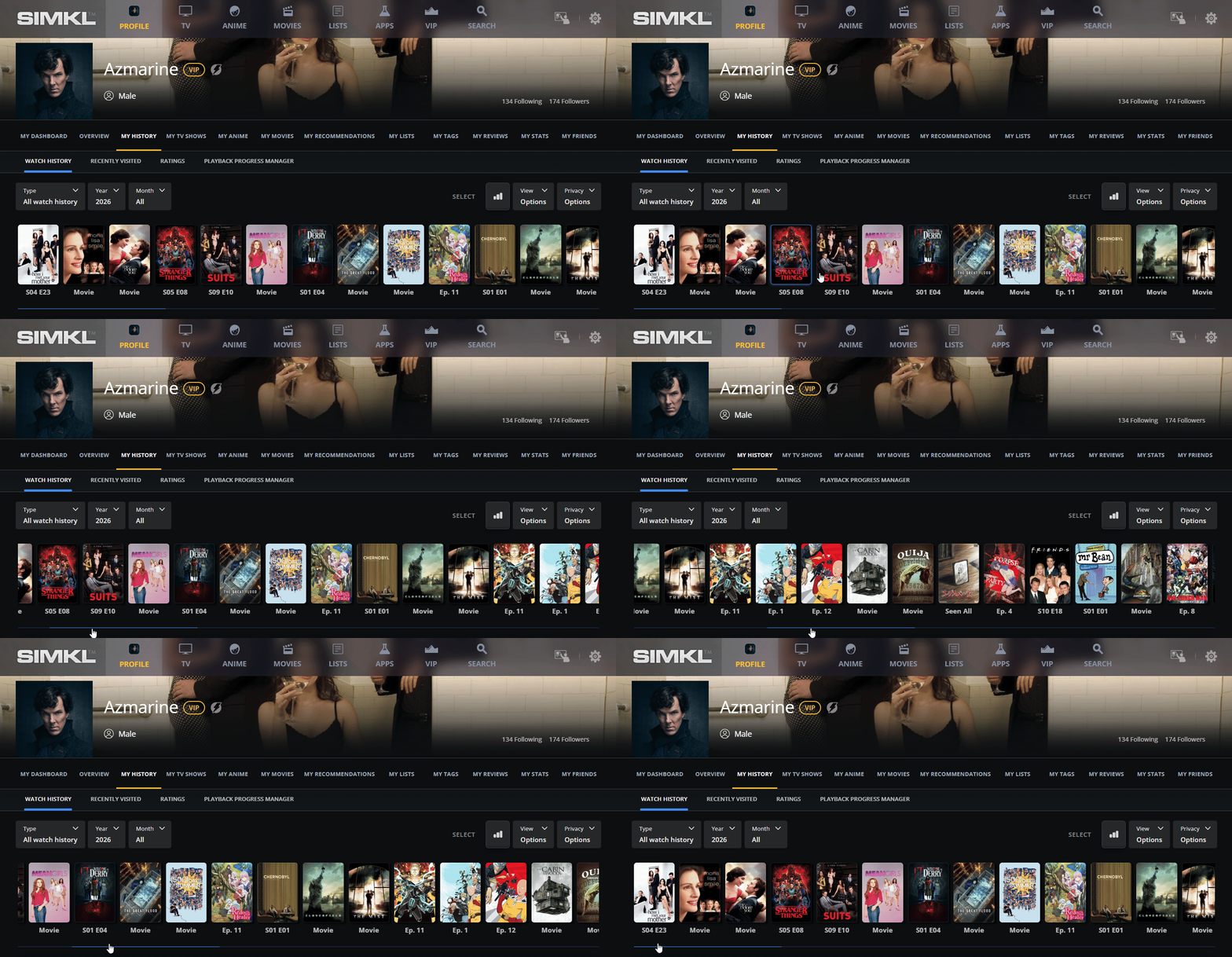
### 1. Horizontal Timeline (For Recently Watched)
At the top of the page, SIMKL shows a **horizontal poster strip** of everything you watched recently.\
This is not just a list it is a **visual timeline**.
Each tile represents:
* A movie you watched
* A TV episode
* Or an anime episode
The order always reflects **actual viewing time**, not release date or when you added something to a list. If you watched three episodes of a show and then a movie, that exact sequence is preserved.
This allows you to:
* Quickly see what you last watched
* Continue unfinished viewing sessions
* Visually browse your recent habits
It works like a **media playback memory**, similar to Netflix’s “Continue Watching,” but unified across **all services and devices**.
***
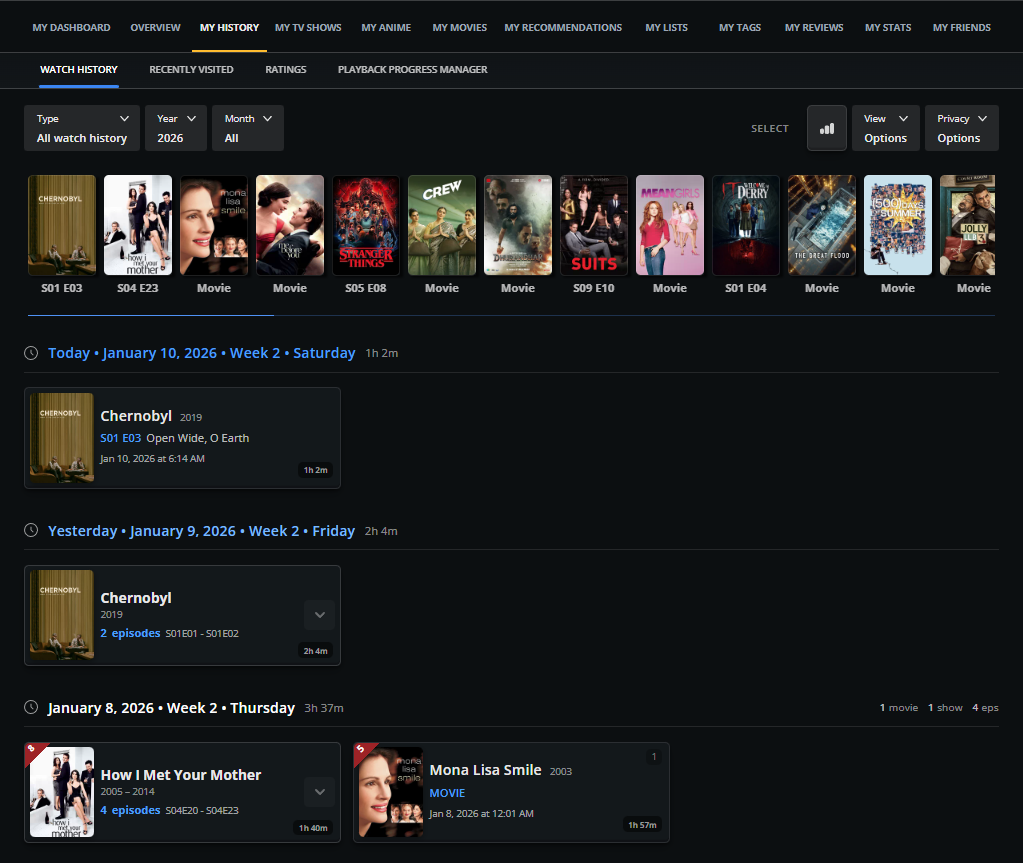
### 2. Watch Activity Timeline (Core Feature)
The **Watch Activity Timeline** is the main feed of your viewing history, displayed as a scrollable timeline that can cover **today, last week, months ago, or even 10 years ago**.
Instead of showing a long unstructured list, SIMKL organizes viewing sessions into **time-based groups** typically **by day**, and within that day, the page also references the **week number** and can roll up viewing into month-level stats.
#### a) Watch Entry Details (What Each Card Shows)
Each timeline group provides both **context and summary**.
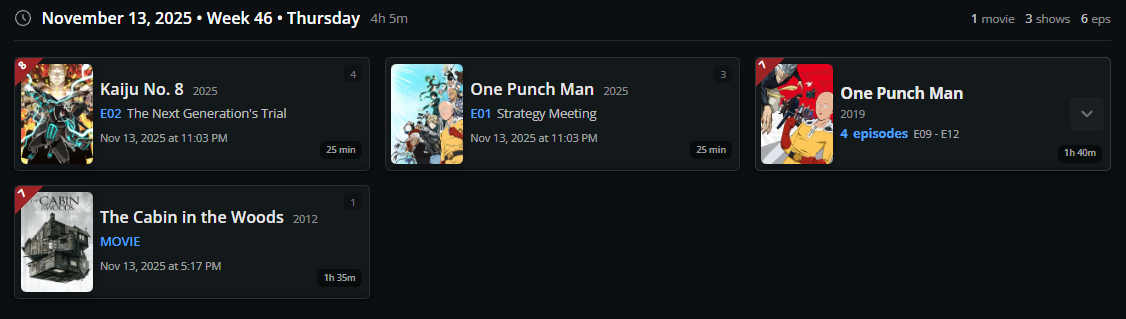
For example, a day header shows the date and includes a compact breakdown such as **“1 movie • 1 show • 4 eps”**, along with the **total watch time** for that day.
This makes it easy to understand *what kind* of content you consumed during that period, not just the titles.
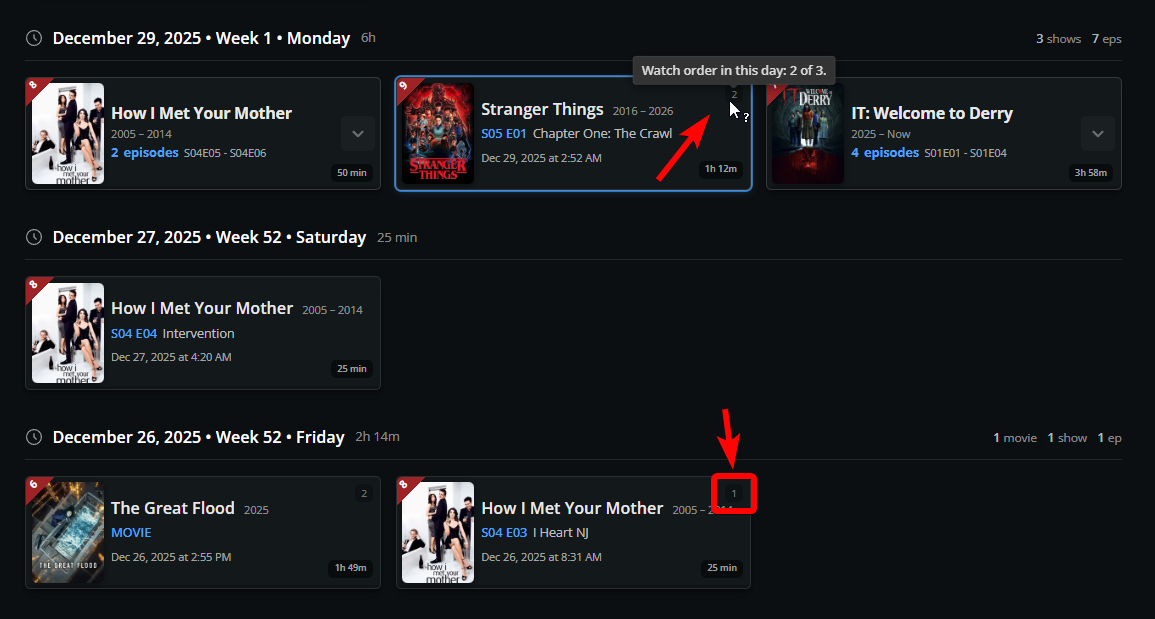
A key detail is that SIMKL preserves **watch order**.
If you watched an episode, then a movie, then another episode, the timeline reflects that order instead of rearranging items by title.
This matters for anyone who wants to reconstruct a binge session accurately especially when you rewatch, watch multiple episodes in a row, or watch across multiple genres in a single day.
Each watch entry (movie card, grouped show card, episode card) contains more than just the title.
* **Your rating** (shown as a red badge/watermark in the top-left area)
* **When watched** (date + time)
* **Total time spent watching**
* Episode identifiers (Season/Episode)
* Type labeling (Movie / TV / Episode)
* Count summaries per day header (e.g., “1 movie, 1 show, 3 eps”)
{% content-ref url="/pages/NKKI8qGtGVFufRmtgUEx" %}
[Edit Watch History Dates](/how-to-use-simkl/core-features/content-tracking/tracking-content/watch-history/edit-watch-history-dates.md)
{% endcontent-ref %}
This is important because it ties your watch history to:
* Your personal evaluation (rating)
* Accurate timestamps (for ordering and recall)
* Time investment (true “spent watching” record)
It becomes especially valuable when you compare sessions:
* “That day I watched 2 movies” vs “That day I watched 10 episodes”
* “My longest binge was 5h 37m”
* “I watched this at 12:01 AM” (late-night viewing)
This structured detail is what enables SIMKL to provide reliable stats, sorting, and higher-level history tools later (like editing watch dates and playback manager behaviors).
In short: this is your **full viewing timeline**, structured to be readable, searchable, and meaningful—not just stored.
***
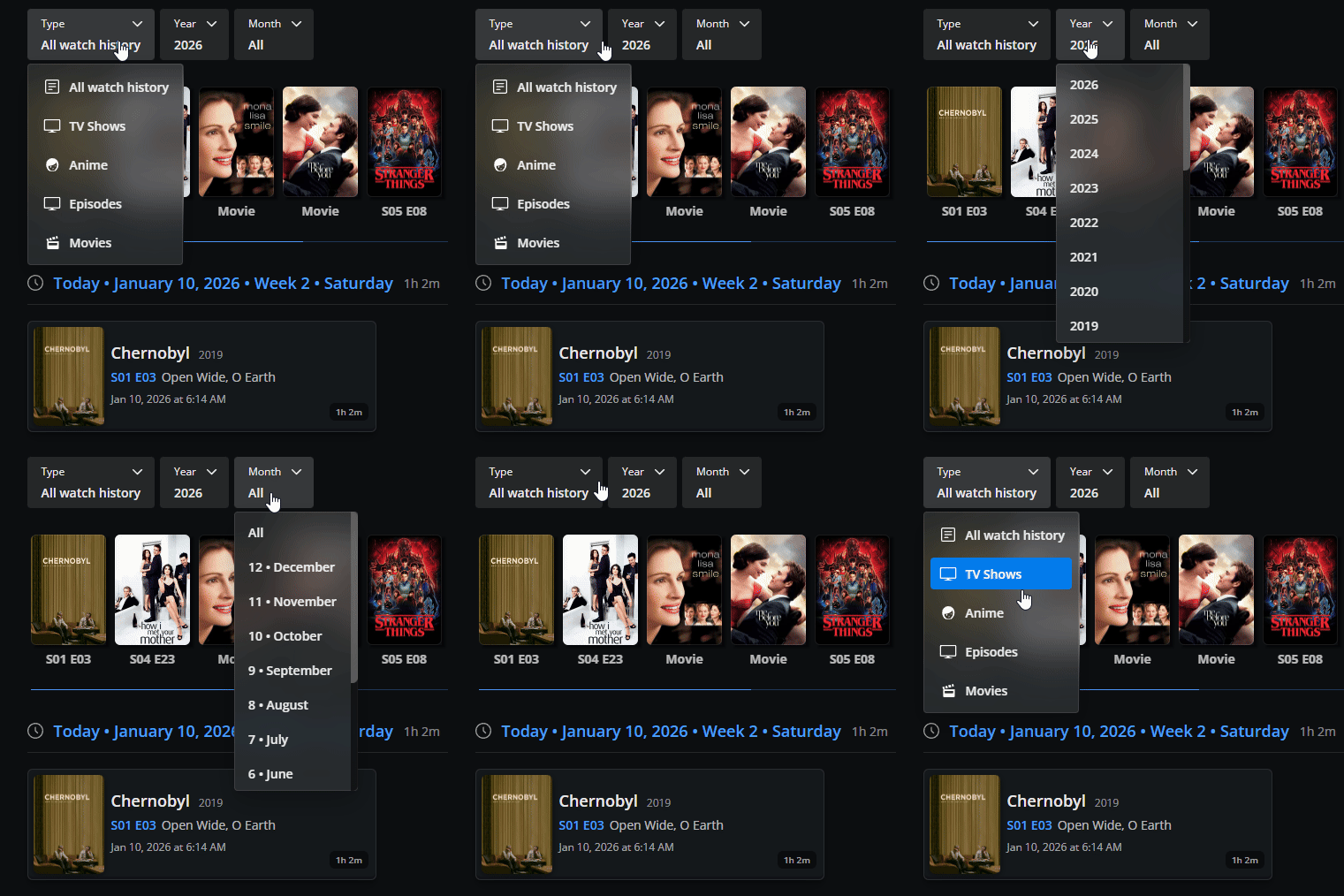
### 3. Filter & Sort Controls (Type, Year, Month)
At the top of the Watch History page, SIMKL includes filters that allow you to narrow history by:
* **Type:** All watch history / Movies / TV / Anime
* **Year:** e.g., 2026
* **Month:** e.g., All months or a specific month
These filters convert Watch History into a searchable archive. Instead of endlessly scrolling, you can jump directly to the time window and content type you care about.
The filter bar lets you turn a massive history into something precise.
This makes it easy to answer questions like:
* What did I watch this year?
* What was my most active month?
* When did I watch this show?
SIMKL doesn’t just store history, it lets you **query it like a database**.
***
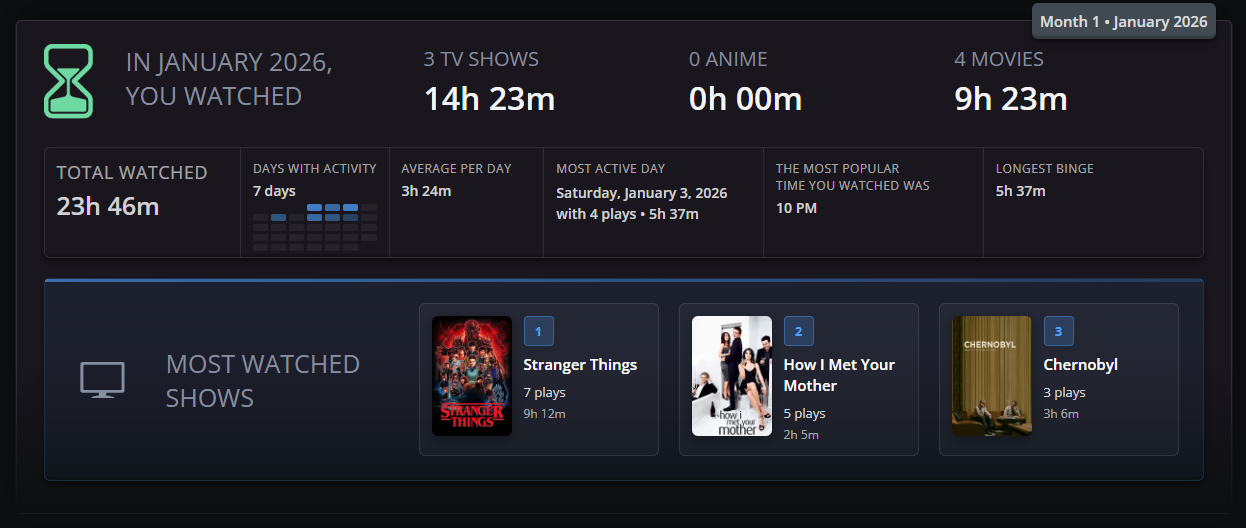
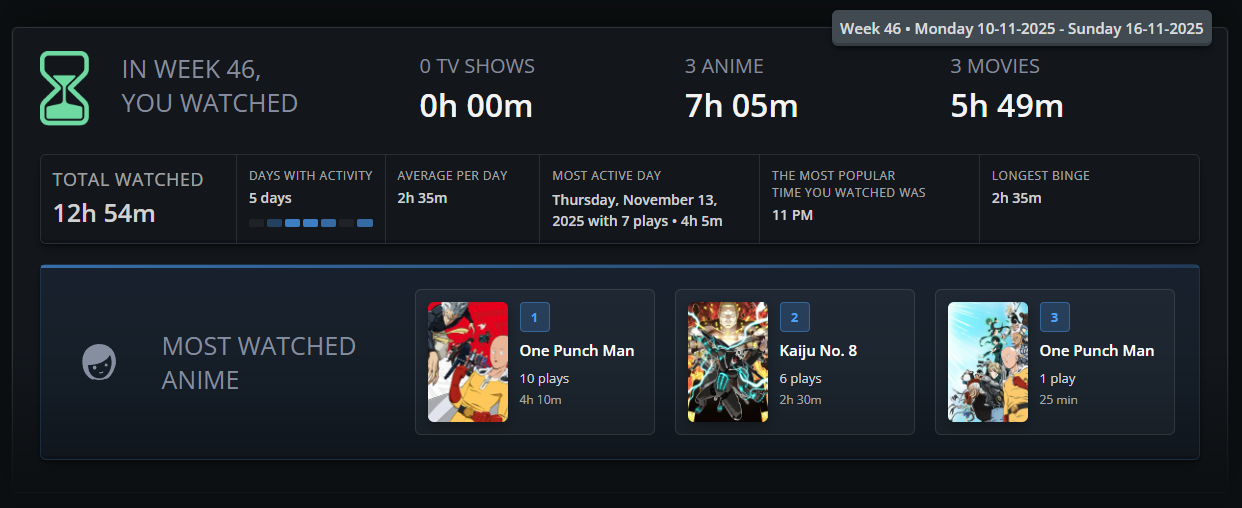
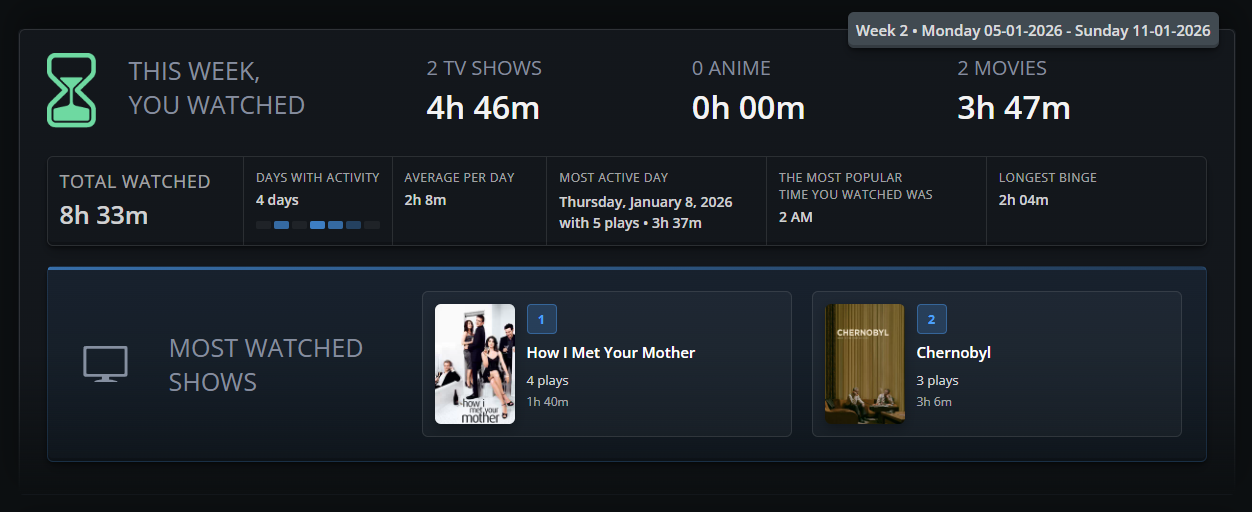
### 4. Weekly & Monthly Watch Statistics (Insight Cards)
The Watch History page includes a stats section that summarizes your viewing into **weekly and monthly performance cards**.
This is where SIMKL becomes more than a tracker and turns into a viewing analytics tool.
Weekly/monthly cards can include:
* **Total watched time**
* **Days with activity**
* **Average per day**
* **Most active day** (e.g., Thursday)
* **Most popular watch time** (e.g., “2 AM”)
* **Longest binge session**
* **Most-watched shows** (dominant title for that period)
These stats are not random they are computed directly from the Watch Activity timeline.
For example, “days with activity” is based on how many days in that period have watch entries logged. “Longest binge” is derived from the largest time block or session cluster in that window.
This is powerful because it lets users understand patterns such as:
* Do you binge on weekends or spread watching evenly?
* What times do you usually watch content?
* Do movies dominate your time, or TV episodes?
It also helps you validate data quality.
If a scrobble tool accidentally logs incorrect duration, it becomes visible when weekly totals look wrong then you can clean it using bulk delete or edit tools later.
***
### 5. Episode Grouping (Smart Show Collapsing + Expand)
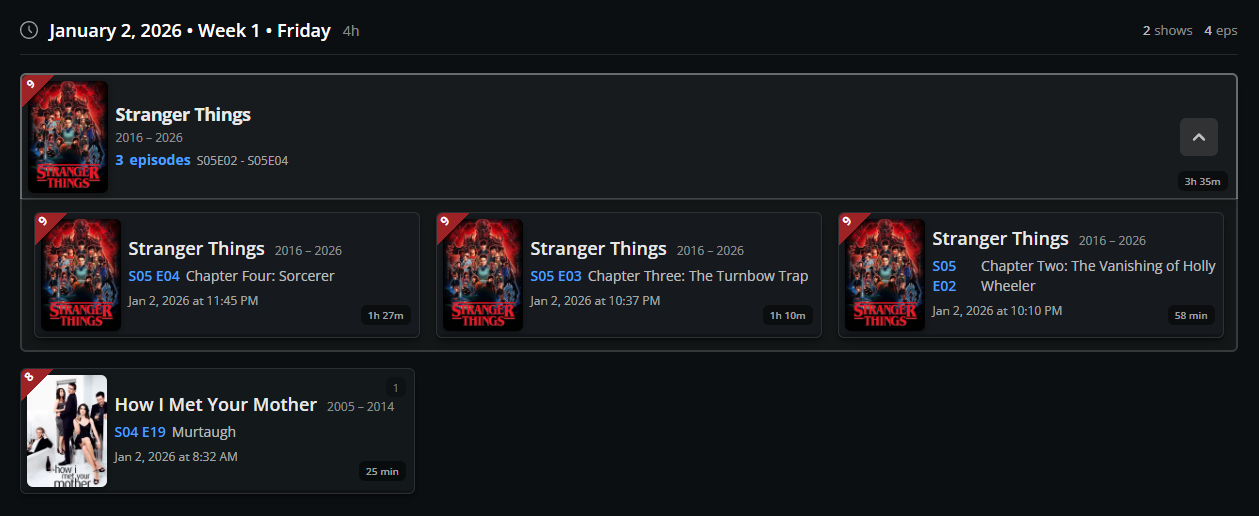
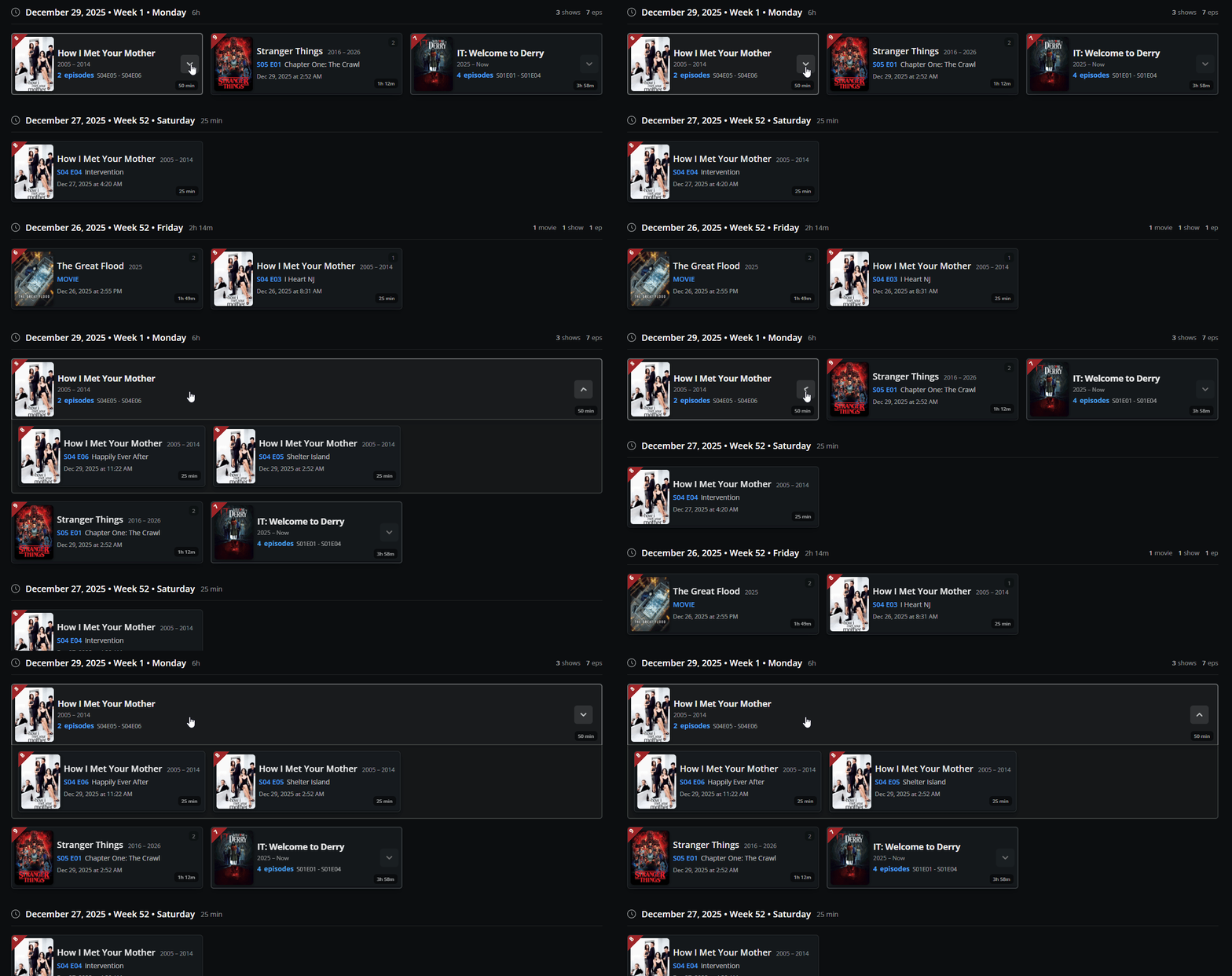
When multiple episodes of the same TV show (or anime series) are watched within the same day or session, SIMKL intelligently **groups them under one title card** instead of cluttering the timeline with repeated rows. This is why the Watch History remains readable even for heavy binge sessions.
For example, if you watched **4 episodes of Stranger Things**, SIMKL shows a single grouped entry like:
* **Stranger Things – 4 episodes**
* With an episode range visible (e.g., **S05E05 → S05E08**)
{% content-ref url="/pages/6ApdblkGHRW9cCGkFqij" %}
[Bulk Episode Editor](/how-to-use-simkl/core-features/content-tracking/tracking-content/bulk-episode-editor.md)
{% endcontent-ref %}
This grouped card includes a dropdown/expand control.
When you expand it, SIMKL displays the **individual episode cards inside that group**, each with its own episode identifier and timestamp (when watched). This creates the best of both worlds:
* A clean overview when collapsed
* Full detail when expanded
Grouping also improves accuracy when you return later and try to answer questions like:
* “How many episodes did I watch that night?”
* “Which episodes did I finish during Week 2?”
* “What was the exact episode order during my binge?”
So the feature isn’t only visual convenience it preserves the integrity of **session-level viewing**, while making the overall feed manageable for long-term history.
***
### 6. View Options (Customize Your Layout)
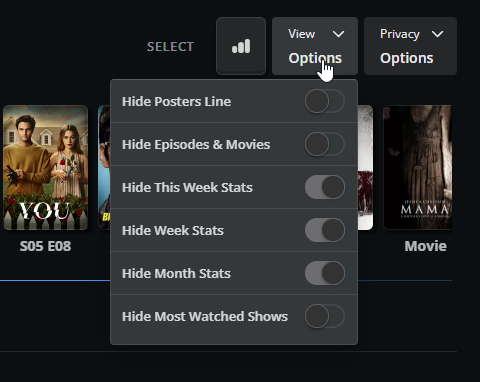
The Watch History page provides **View Options** so users can tailor the layout to how they use SIMKL. This matters because some users want a **full customization**, while others want a **minimal clean log**.
View Options (as shown in your screenshot) include toggles like:
* Hide Posters Line (the horizontal poster, recently watched)
* Hide Episodes & Movies (simplify the feed)
* Hide “This Week” stats card
* Hide Week Stats
* Hide Month Stats
* Hide Most Watched Shows
This effectively gives you “modes” without switching pages:
* **Timeline-only mode:** focus on what you watched, no stats
* **Stats-first mode:** show weekly/monthly insights prominently
This is especially useful if you’re:
* Reviewing older history (stats may not matter as much)
* Cleaning incorrect data (you want a clear feed)
View Options are not about hiding data permanently they are **presentation controls**, allowing users to shape the interface to match their workflow.
***
### 7. Privacy Controls (Control What Others See)
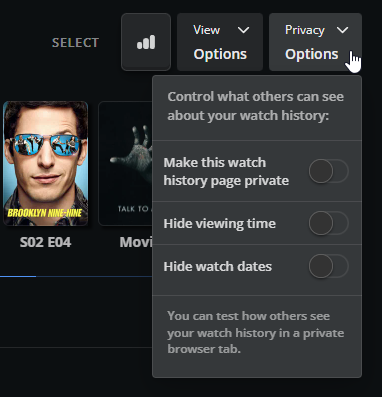
The Watch History page includes **Privacy Options** that let you decide what is visible to other users when they view your profile.
* **Make this watch history page private**
* **Hide viewing time**
* **Hide watch dates**
{% hint style="info" %}
You can test how it looks (typically by checking in a private browser window), which is important because privacy features are only valuable if users can verify them.
{% endhint %}
These controls give granular privacy, which is important because many users want to:
* Keep their watch habits private (e.g., late-night binging)
* Share lists and ratings publicly but not timestamps
* Hide watch date history while still showing what they’ve watched in general
The strongest privacy mode is making the page private entirely, meaning others won’t see this tab. The lighter privacy options keep the page visible but remove sensitive details (time and dates), reducing the “behavioral footprint” while still allowing public-facing profiles.
***
### 8. Bulk Delete Watch History / Activity (Cleanup + Correction)
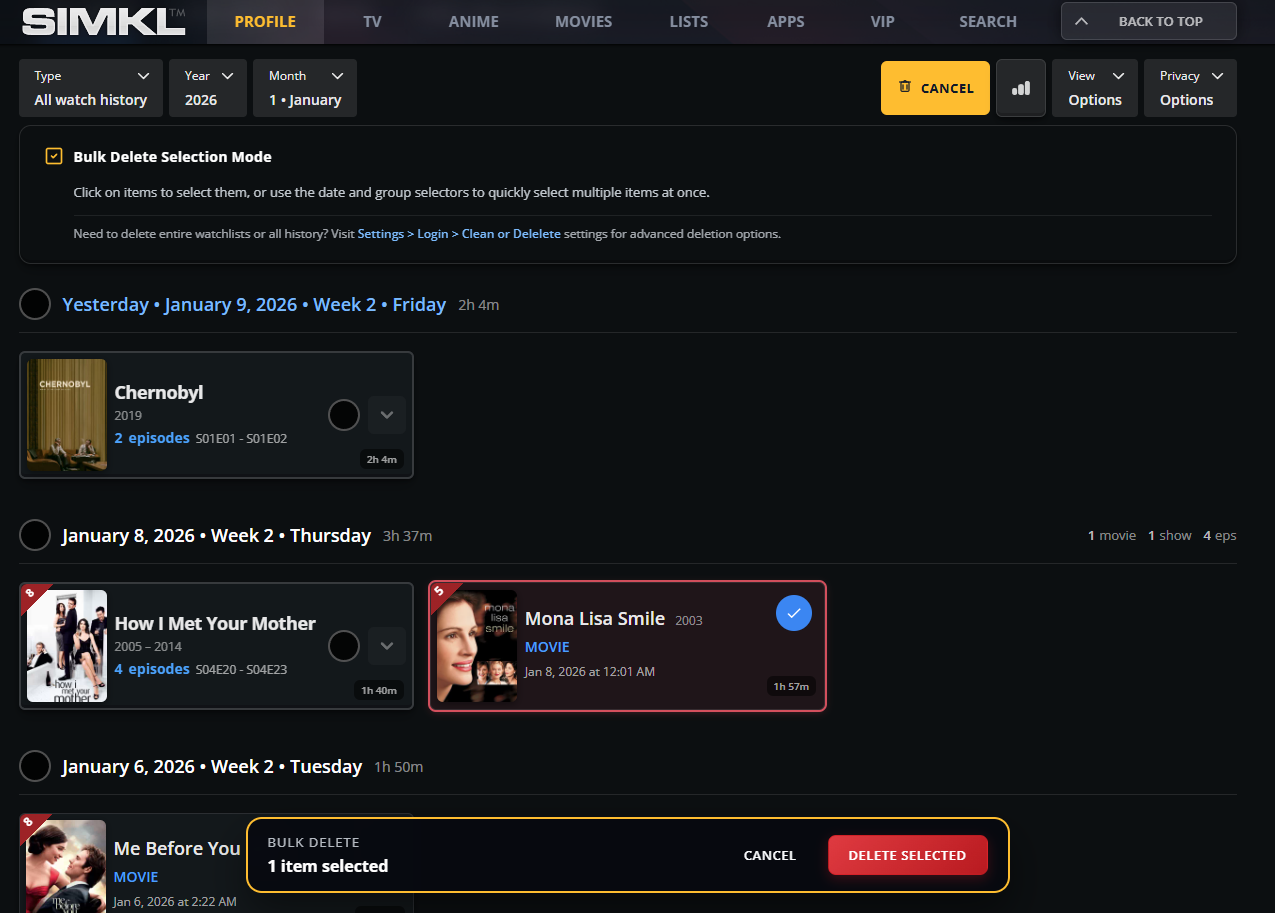
SIMKL includes a powerful **Bulk Delete Selection Mode** inside **My Watch History** that gives you full control over what stays in your viewing timeline.
This is especially important for users who rely on **scrobblers, Plex integrations, browser extensions, or multiple devices**, where incorrect or duplicate watches can occasionally happen.
Instead of forcing users to delete their entire history or edit entries one by one, SIMKL lets you clean up exactly what you want quickly and safely.
#### **How Bulk Delete Mode Works**
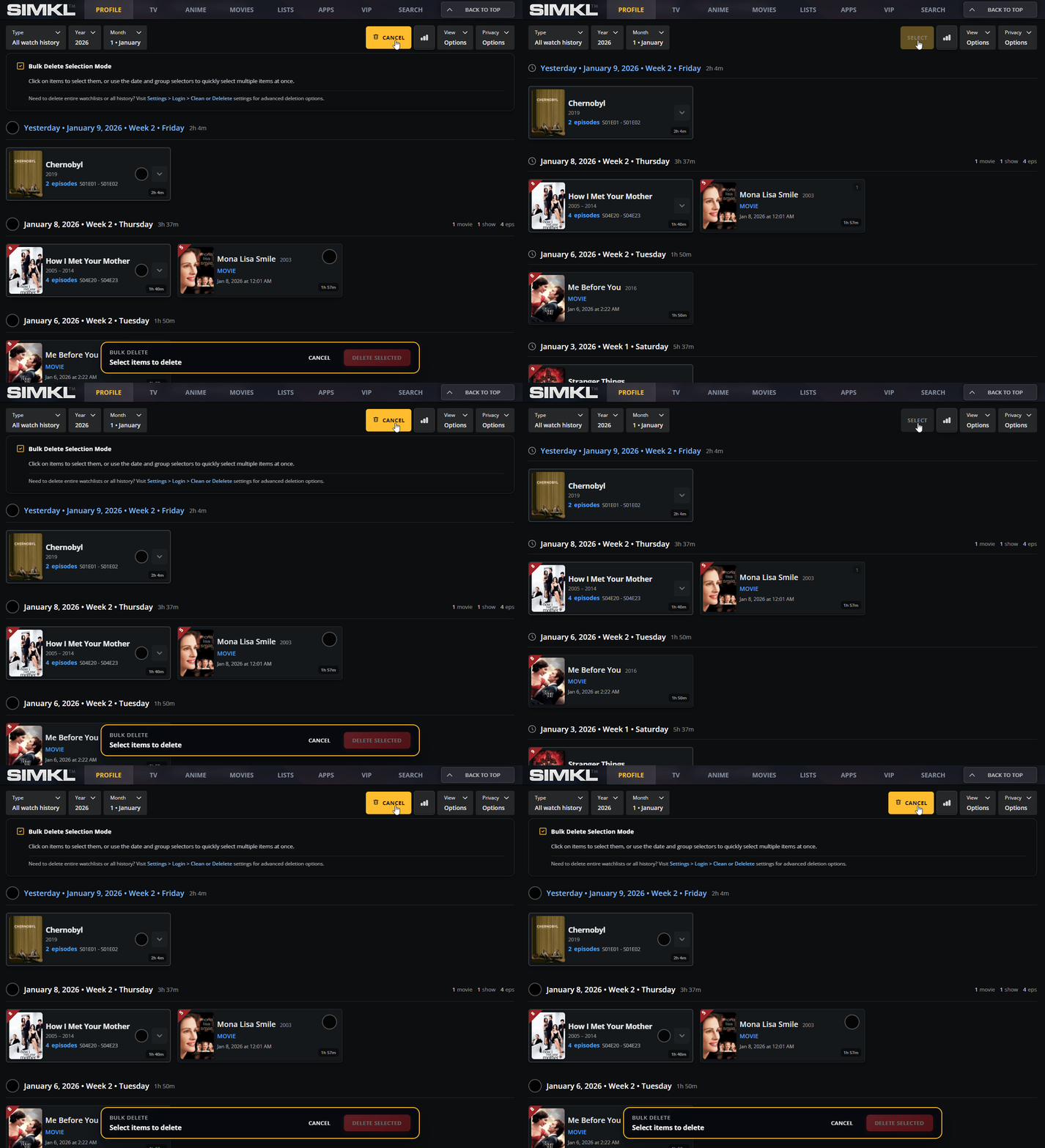
When you click the **“Select”** button at the top of your Watch History, SIMKL switches into **Bulk Delete Selection Mode**.
Once active:
* Every watch entry gets a **selection circle**
* You can **click any card** (movie, episode, or show group) to select it
* You can select **multiple items across different days**
* You can delete **just what you choose**, not everything
At the bottom of the screen, a floating **Bulk Delete bar** appears, showing:
* How many items are selected
* A **Delete Selected** button
* A **Cancel** button to exit safely
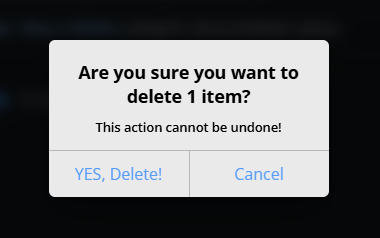
Before anything is removed, SIMKL shows a **confirmation dialog**:
> “Are you sure you want to delete X items? This action cannot be undone.”
This ensures no accidental loss of data.
#### **What You Can Clean Up**
Bulk Delete is designed for **real-world usage**, where tracking isn’t always perfect.
You can use it to:
* 🧹 Remove wrong scrobbles: If your media player logged the wrong movie or episode, you can delete only that entry.
* 🧪 Clean up test activity: If you tested a scrobbler, API, or new device and it logged fake watches, you can remove the entire test batch in seconds.
* 🔁 Delete duplicate episodes: If an episode was logged twice (or more), just select the extras and delete them.
* 📅 Remove a full viewing block: You can delete everything from one day, week, or binge session without touching the rest of your history.
SIMKL also clearly guides users toward advanced deletion settings if needed:\
**Settings → Login → Clean or Delete**
This separation is good UX: bulk delete is for daily cleanup, while full wipe options stay protected in settings.
{% content-ref url="/pages/Slp2fEknNJrGZVghwSHv" %}
[Simkl Account Cleanup & Deletion](/how-to-use-simkl/getting-started-with-simkl/account-creation/basic-account-setup/login-and-password-settings/simkl-account-cleanup-and-deletion.md)
{% endcontent-ref %}
This feature matters because watch history is personal data, and users should have **full control** over what is stored.
***
### Why My Watch History Is Powerful
Your watch history is more than just a list of titles it is a **living record of your entertainment life**.
It reflects how you spend your time, what you love, how you binge, and how your tastes evolve. Every stat on SIMKL, every recommendation, every streak, and every achievement is built on that data.
That is why SIMKL treats your watch history as something **you own and control** not something locked away behind automatic tracking.
The Bulk Delete system exists to protect the integrity of that data.
It ensures that:
* Scrobbling errors never permanently damage your statistics
* Test runs, misfires, and duplicates can be removed cleanly
* Your weekly, monthly, and lifetime stats stay accurate
* Your recommendations remain based on what you truly watched
* Your public profile reflects your real viewing habits
In a world where we watch on **multiple devices, apps, TVs, browsers, and players**, mistakes are inevitable. SIMKL acknowledges this reality and gives you the tools to correct it without forcing you to reset everything or live with bad data.
This is what true tracking control looks like: **powerful automation with human-level correction.**
**My Watch History** is where SIMKL becomes more than a tracker, it becomes a **record of your viewing life**.
---
# Agent Instructions
This documentation is published with GitBook. GitBook is the documentation platform designed so that both humans and AI agents can read, navigate, and reason over technical content effectively. Learn more at gitbook.com.
## Querying This Documentation
If you need additional information that is not directly available in this page, you can query the documentation dynamically by asking a question.
Perform an HTTP GET request on the current page URL with the `ask` query parameter, and the optional `goal` query parameter:
```
GET https://docs.simkl.org/how-to-use-simkl/core-features/content-tracking/tracking-content/watch-history/my-watch-history.md?ask=&goal=
```
`ask` is the immediate question: it should be specific, self-contained, and written in natural language.
`goal` is optional and describes the broader end goal you are ultimately trying to accomplish on behalf of the user. GitBook uses it to tailor the answer towards what is most useful for that goal.
The response will contain a direct answer to the question and relevant excerpts and sources from the documentation.
Use this mechanism when the answer is not explicitly present in the current page, you need clarification or additional context, or you want to retrieve related documentation sections.